

PAPERCUT PRINTER
PaperCut Hive lets you print from anywhere and release your jobs securely at any printer. Follow the steps below to get set up in minutes.
Before you begin, check your inbox. Your administrator will send you an invitation email with a Get Started button and a unique setup link. Don’t share this email with anyone else.
1-Open your invitation email
Your IT administrator will send you a PaperCut Hive invitation email. Click the Get Started button inside. This will take you to a setup page with 3 simple steps. Your invite may also contain a QR code or access code — keep it private.
Invite links expire — use it promptly or ask your admin for a new one
2-Download and install the PaperCut Hive app
From the setup page, download the PaperCut Hive print client for your device — Windows, macOS, or ChromeOS. Run the installer and follow the prompts. The app installs a “PaperCut Printer” on your device that you’ll use to send jobs to any printer in your organisation.
3-Log in and link your account
Once installed, the app may prompt you to log in using your organisation’s sign-in method (e.g. Microsoft or Google account). This links your device to your PaperCut Hive account so your print jobs are securely tied to you.
At some organisations this step happens automatically when you first print
4-Send a document to print
Open any document and press Ctrl+P (Windows) or ⌘+P (Mac). Select PaperCut Printer or Follow-Me Cloud from your list of printers and click Print. Your job is sent securely to the PaperCut Hive cloud. It will wait there until you choose to release it at a printer.
Jobs that aren’t released within the set time limit will be deleted automatically
5-Walk to any printer and release your job
Go to any printer. Choose one of the release methods available at that printer (see below). Confirm your job, make any last-minute changes (like switching to black & white), then press print. Collect your document from the tray.
You can select all, some, or just one job to release at a time
How to print at school with PaperCut Hive
Printing is already set up on your school computer. No downloads, no sign-ups needed. Just follow these steps each time you need to print something.
1-Log in to your school computer
Use your normal school username and password to log in. PaperCut Hive will recognise your school account automatically.No separate login needed.
2-Open your document and press print
Open the file you want to print (a Word document, PDF, web page, anything). Press Ctrl + P on the keyboard to open the print window.
3-Select “PaperCut Printer” and click Print
In the printer dropdown, choose Follow-Me Cloud Printer. Adjust any settings you need (number of copies, colour or black & white, 2-sided). Then click Print.
Your job is saved in the cloud.It won’t print yet until you go to a printer
4-Go to the library printer
Head to the library. That’s the only printer available for student use. Your print job will be waiting for you there.
How to release your print job at the printer
Student ID card
Tap or swipe your school ID card on the card reader on the printer.
PIN / access code
Enter your school PIN on the printer’s touchscreen to log in and release jobs.
Can't print? Check your login first
You need to log in if you cannot print
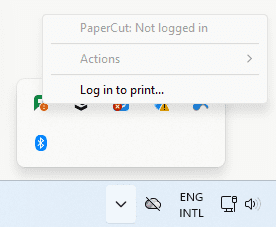
If you see this message in the bottom-right corner of your screen, PaperCut doesn’t know who you are yet. You won’t be able to send print jobs until you log in.
- Click the ^ arrow in the taskbar (bottom-right) to show hidden icons
- Right-click the PaperCut icon
- Click Log in to print…
- Sign in with your normal school username and password
Once logged in, the message will change from “Not logged in” to your school username. You’re now ready to print!
Common Questions
1-My invite email link isn’t working — what should I do?
Invitation links can expire after a short period. Ask your IT administrator to resend the invitation and use the new link promptly.
2-I can’t see “PaperCut Printer or Follow-Me Cloud” in my printer list
The print client may not be installed yet. Return to your invitation email and follow the download steps, or check if your organisation’s IT team has deployed the software via Microsoft Intune or another tool.
or use refresh my printer list option
3-My print job disappeared before I could release it
Jobs are automatically deleted after a set time period (your admin decides how long). Simply resend the document to print and head to the printer sooner.